Instance info and management
After deploying an instance, you can view and manage it from the Running Instances page. Use the search bar to filter instances by name or the status dropdown to narrow the list.
Instance information
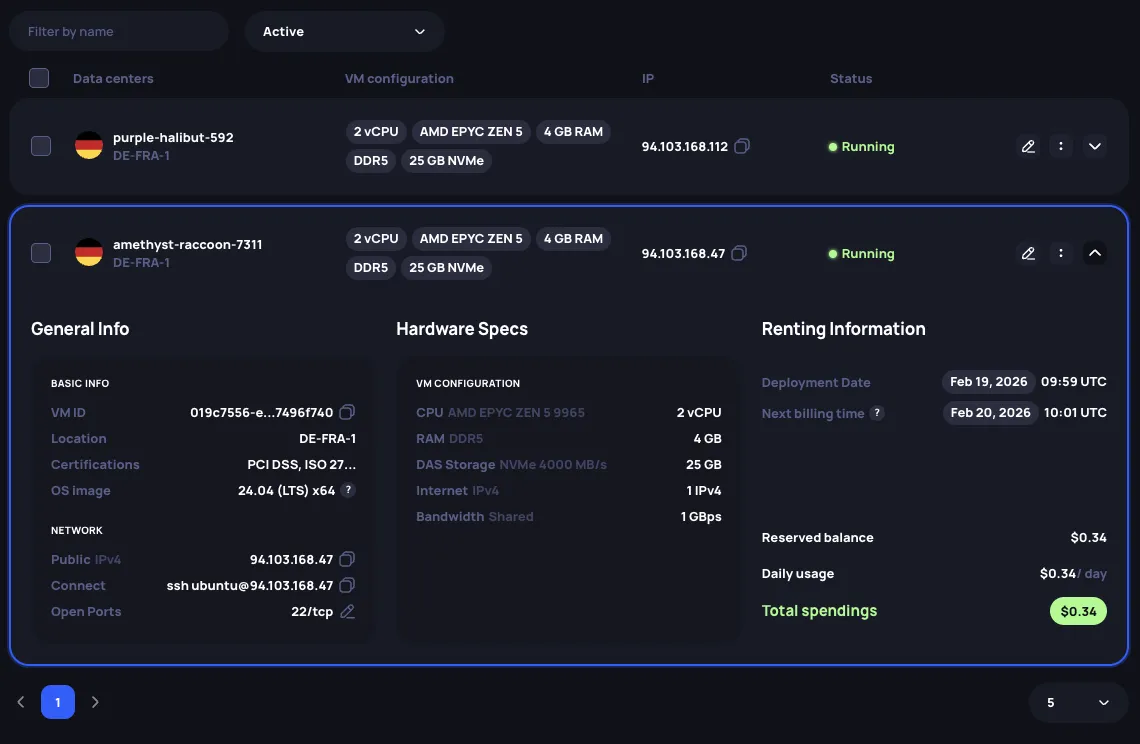
Each instance appears as a card with its name, location, hardware summary, IP address, and status. Click the expand arrow to reveal full details — general info, hardware specs, connection details, and billing.
Instance management
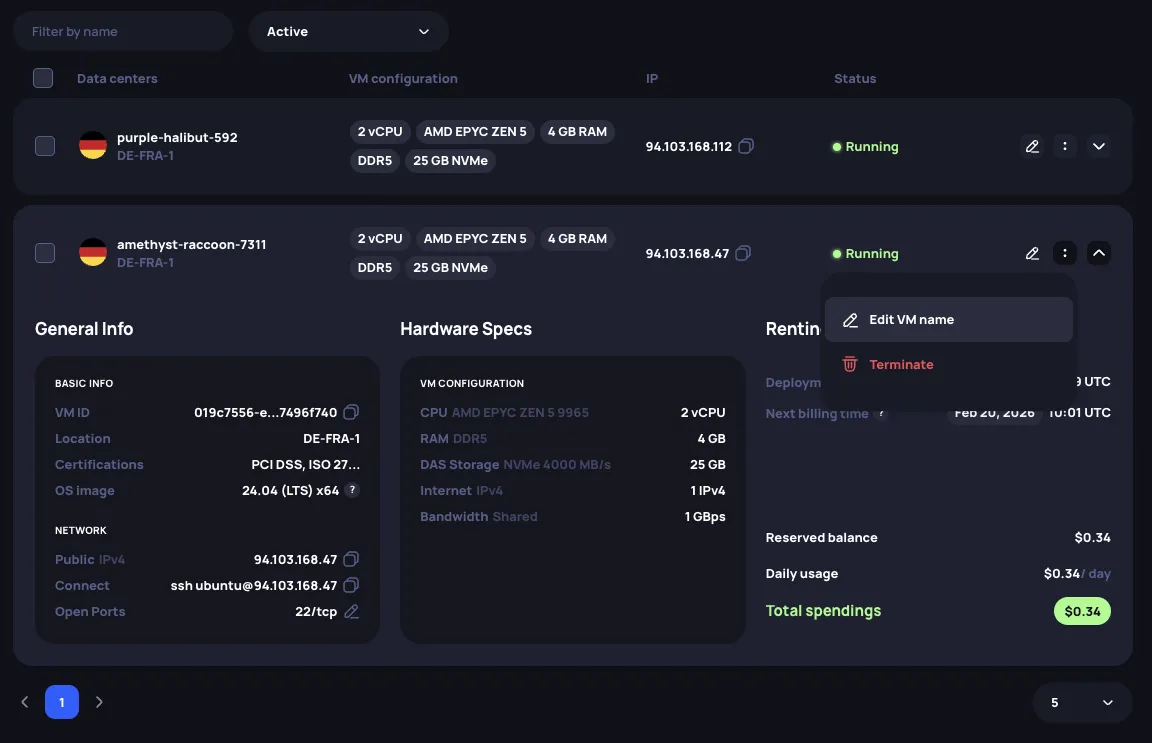
Click the three-dot menu on an instance card to access the available actions:
- Edit VM name — rename the instance.
- Terminate — stop the instance and end the rental agreement. Any unused reserved balance is returned to your account.
Billing history
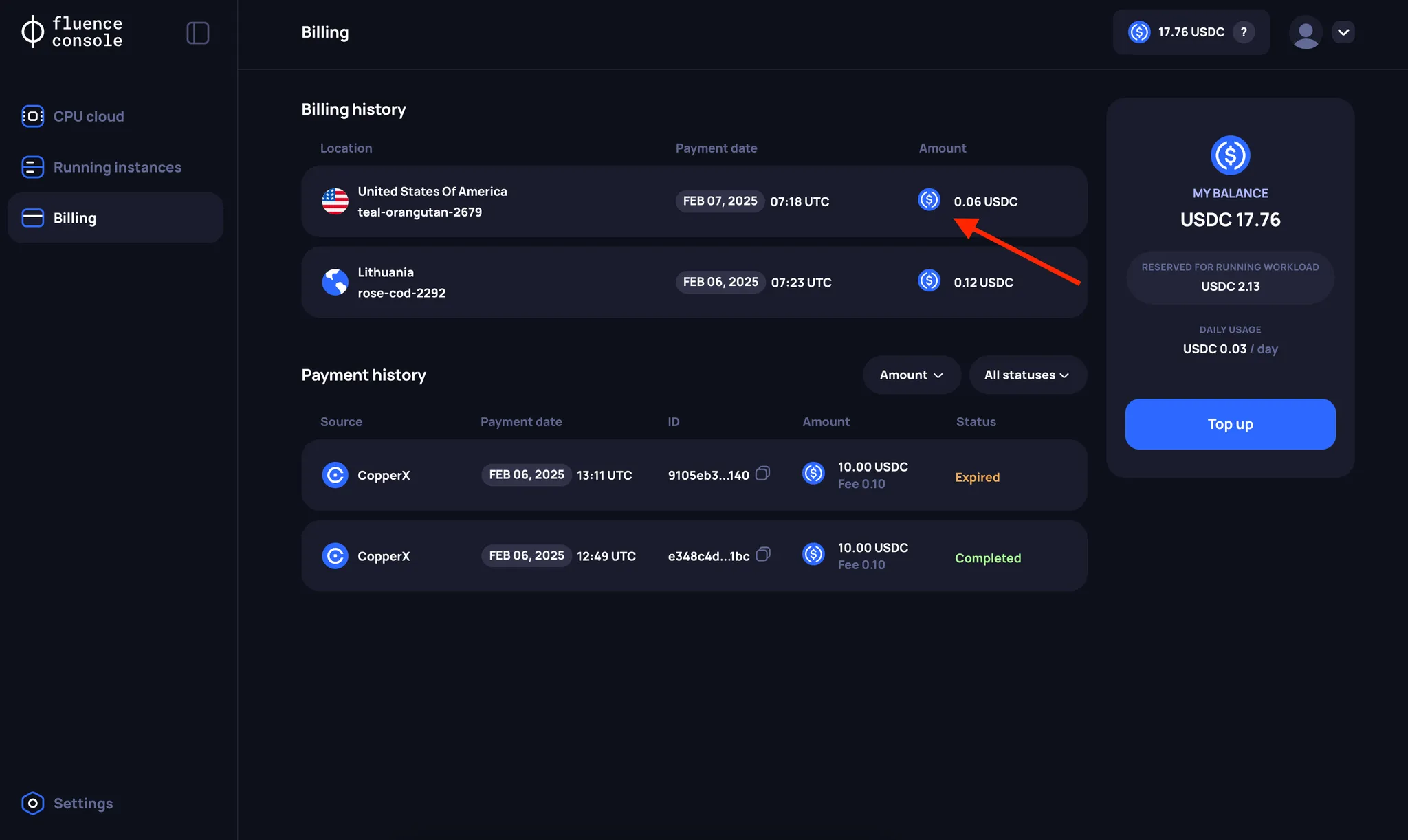
The history of your charges can be found on the Billing page in the Billing History section.
Handling provider-terminated instances
When a compute provider terminates an instance that you are actively using, the instance is moved to Terminated status.
Terminated instances are no longer accessible, and data stored on them is lost.
Even though a provider has terminated your instance, its record will still appear in your list with its balance reserved. You need to perform a final step to remove this record, which releases the funds back to your main balance.
Reasons for termination
The Fluence compute marketplace sources from established compute providers with high standards of security and reliability supported by Tier 3 and 4 certifications. Termination is a last resort for providers when handling exceptions and usually results from adverse user behavior such as:
- Not paying for the instance (reserved balance reached 0)
- Violating the terms of service
- Using the instance for illegal activities or running malicious workloads
Identification of terminated instances
Status updates about instance termination are available in the Fluence Console on the Running Instances page, or via the API when you request your active instances using the list instances endpoint.
Fluence Console
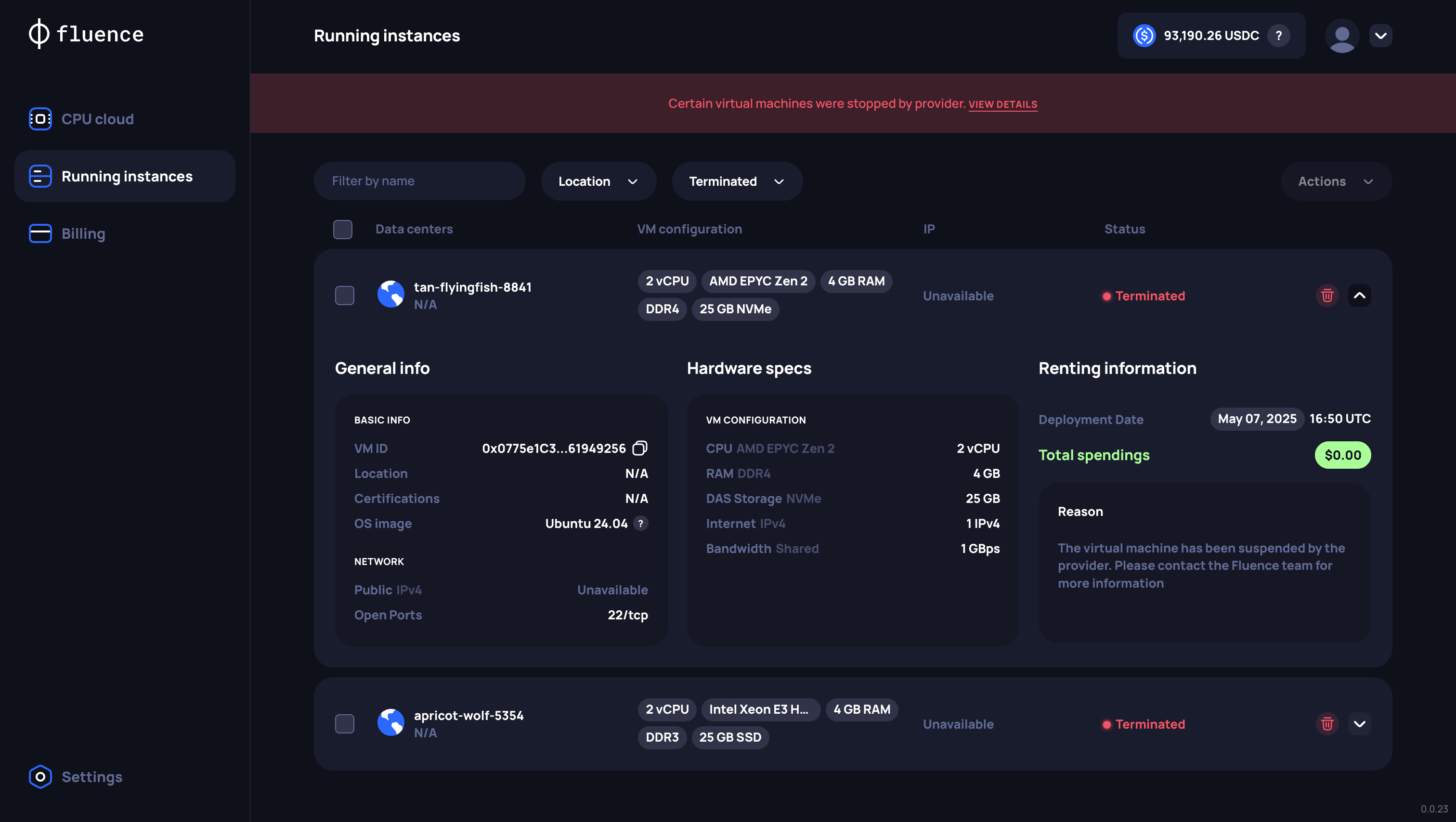
Banner notification. You will see an informational banner on the Running Instances page with the message: "Certain virtual machines were stopped by the provider. View details". Click View details to see the list of terminated instances.
Status display. The instance will be clearly marked with a Terminated status.
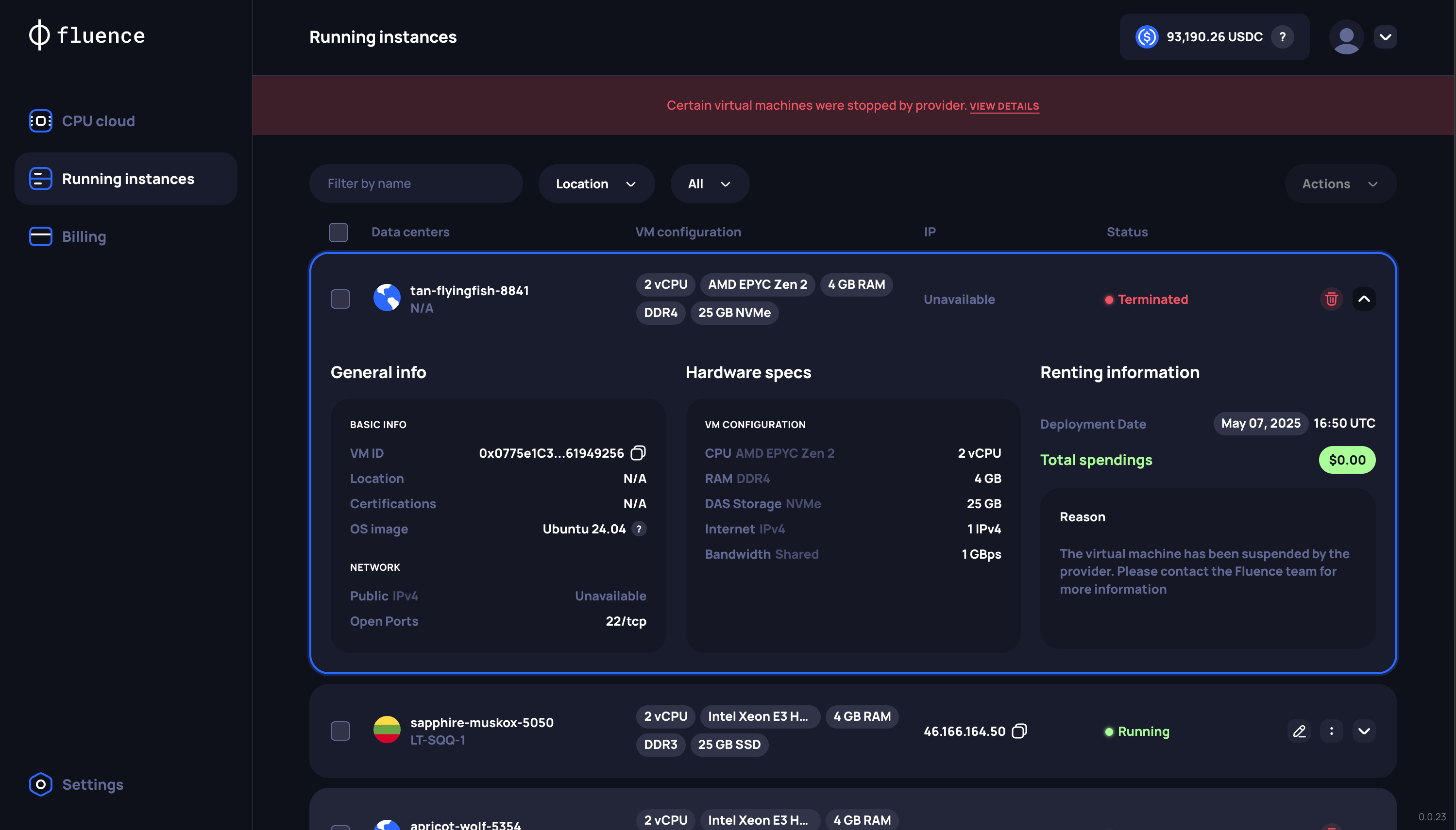
Filtering. You can use the status filter on the Running Instances page and select Terminated to view only these instances.
API
In the response from the list instances endpoint, the status field for the affected instance will be "Terminated". The publicIp field will be null, and location information within the datacenter object may be absent.
{
  "id": "0x68bd60079721AE2A04759d00Fc516148aCF479e4",
  "vmName": "apricot-wolf-5354",
  "status": "Terminated",
  "pricePerEpoch": "0.30697",
  "resources": [ ... ],
  "osImage": "...",
  "datacenter": null,
  "publicIp": null,
  "ports": [
    {
      "port": 22,
      "protocol": "tcp"
    }
  ],
  "reservedBalance": ".30697",
  "totalSpent": "2.45576",
  "createdAt": "2025-05-07T16:20:43Z"
}
Finalization and reserved funds release
After identifying instances terminated by a provider, you need to finalize the termination to release the reserved funds:
Fluence Console
Click Terminate on the instance with Terminated status to remove its record and release its reserved funds. See instance management for details.
API
Use the delete endpoint with the instance ID to remove its record and release its reserved funds.